Seedream 5.0 in PromptWise: pricing and how to use it
By Daniel Riley · Published · Updated
In short: Seedream 5.0 is ByteDance's latest image model, and you can use it in PromptWise in two versions, Seedream 5.0 Pro and Seedream 5.0 Lite, alongside Seedream 4.5 and 4.0. Every model is available as soon as you sign up, on every plan from $19 a month, and each image uses credits shown on the Generate button before you start.
Seedream is ByteDance’s image model family, from the same Seed team that makes the Seedance video models. In PromptWise, a web studio that brings 40+ image, video and audio models together, all four Seedream models sit in the image menu: Seedream 5.0 Pro, Seedream 5.0 Lite, Seedream 4.5 and Seedream 4.0. There’s no separate ByteDance account to set up and no waitlist.
Seedream comes with every plan, from $19 a month. Every model is available as soon as you sign up. See plans
What is Seedream 5.0?
ByteDance released Seedream 5.0 in two steps. Seedream 5.0 Lite came first, in February 2026. ByteDance describes it as a step towards a unified multimodal model that “understands” the intention behind an instruction, with better reasoning, stronger world knowledge and closer alignment between the image and the text in the prompt than Seedream 4.0 and 4.5.
Seedream 5.0 Pro followed in July 2026. ByteDance built it for professional design work and highlights four things:
- Information graphics. Turning data, concepts and dense text into clean, readable layouts.
- Precise editing. Changing a specific part of an image while the rest stays as it is.
- Realistic people and materials. Real-world lighting, materials and skin texture.
- Native multilingual prompts and text. Besides Chinese and English, ByteDance says it handles more than ten widely used languages, including French, German, Spanish, Russian, Japanese, Korean and Arabic, both in the prompt and in the text it renders.
ByteDance is also open about the limits: it says finer-grained text rendering and pixel-level editing consistency still have room to improve. So check small text before you publish.
The Seedream models in PromptWise
The app’s image menu describes Seedream as a “ByteDance high-fidelity image model”. These are the four versions and the options the app offers for each:
| Model | Resolutions in PromptWise | Aspect ratios | Use it for |
|---|---|---|---|
| Seedream 5.0 Pro | 1K, 2K | 1:1, 3:2, 2:3, 16:9, 9:16, 4:3, 3:4, 21:9 | Infographics, posters and designs with text; realistic people |
| Seedream 5.0 Lite | 2K, 3K, 4K | Same eight | Large, detailed images; prompts that need reasoning or world knowledge |
| Seedream 4.5 | 2K, 4K | Same eight | Repeating a look you built on 4.5 |
| Seedream 4.0 | 1K, 2K, 4K | Same eight | Repeating a look you built on 4.0 |
One thing worth knowing: in PromptWise, Seedream 5.0 Lite goes up to 4K, while Seedream 5.0 Pro tops out at 2K. If a design needs Pro’s layout and text handling at a larger size, generate it on Pro first, then decide whether a 2K image is big enough for where it’s going.
Seedream 5.0 pricing on PromptWise
There’s no Seedream add-on to buy. A PromptWise plan is a monthly pot of credits that works across all 40+ models, so Seedream images draw on the same balance as your video and voice work:
| Plan | Price | Credits per month | Images and videos at once |
|---|---|---|---|
| Starter | $19/month | 275 | 2 |
| Plus | $39/month | 800 | 4 |
| Pro (most popular) | $79/month | 1,800 | 6 |
| Max (best value) | $149/month | 3,800 | 8 |
Two larger tiers sit above Max: Max 2 with 6,500 credits for $249 a month and Max 3 with 9,500 for $349. A yearly plan cuts the price by up to 45%. All prices are US dollars before VAT.
The Seedream version, the resolution and the number of images per run decide what a generation costs. Current figures live on PromptWise pricing and models, and the Generate button shows the number before anything runs. Your balance resets each billing month with no rollover; if a project runs long, top up in the app or upgrade anytime in settings. A failed generation is refunded automatically, and billing, cancelling and refunds are explained here.
How to use Seedream 5.0 in PromptWise
- Sign up and pick a plan. Make an account at app.promptwise.com; Seedream is on every plan.
- Open Studio in image mode. Every image you make is saved there for later.
- Pick Seedream. Open the image model menu, choose Seedream, then pick Seedream 5.0 Pro, Seedream 5.0 Lite, Seedream 4.5 or Seedream 4.0.
- Set the format. Choose the aspect ratio, the resolution and how many images you want.
- Write your prompt. Describe the layout and any text in quotation marks; Wise, the built-in assistant, can draft it with you.
- Generate. Check the credit figure on the Generate button, then run it.
Turn your image into video. The video models are in the same app, so a Seedream image can become the start frame for a Seedance 2.5, Kling 3.0 or Veo 3.1 clip without downloading and re-uploading. Save the chain as a Flow, PromptWise’s node-based canvas, to reuse it.
Seedream 5.0 Pro or Seedream 5.0 Lite: which should you pick?
- Pick Seedream 5.0 Pro for anything that’s mostly about layout and words: infographics, explainer slides, menus, posters, packaging mock-ups and social graphics in languages other than English.
- Pick Seedream 5.0 Lite when you want the largest file (up to 4K in PromptWise) or a prompt that leans on general knowledge, such as a landmark, a historical style or a well-known kind of product.
- Keep Seedream 4.5 or 4.0 for series you started on them, so new images match the old ones.
What to make with Seedream 5.0
- Infographics and explainers. Give Seedream 5.0 Pro the facts and the structure, and ask for a clear layout with headings.
- Ads and social graphics with text. Headlines, price tags and short calls to action, in the language of the market.
- Product and lifestyle shots. Realistic light and materials for listings and ads.
- Start frames for video. Approve the look as a still, then animate it, so colours and faces stay consistent.
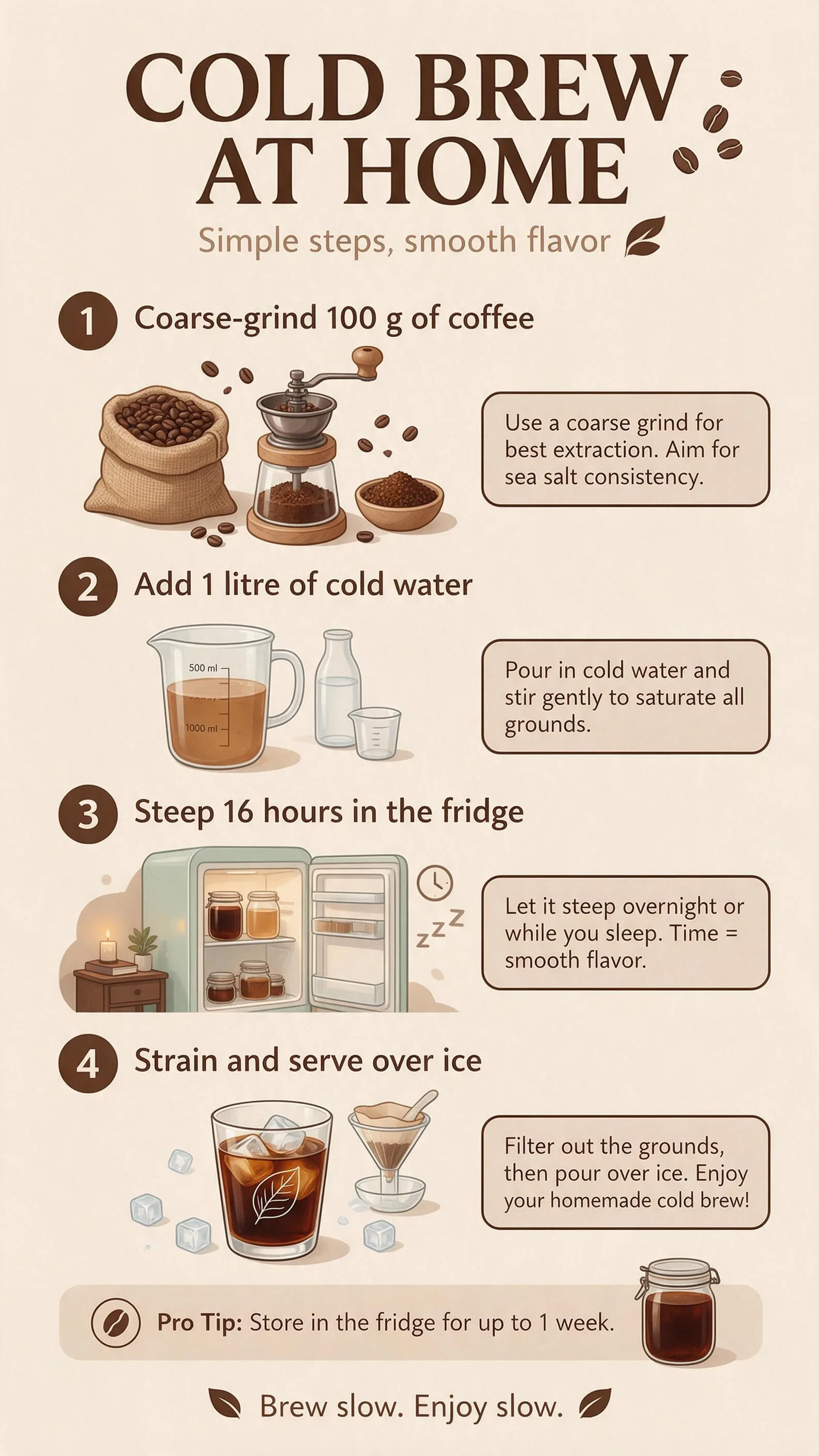


Prompt tips for Seedream 5.0
- Write the text you want in quotation marks, and say where it goes: “Headline at the top: ‘Summer menu’.”
- Describe the structure for infographics: how many sections, what each one shows, and the order.
- Prompt in the language of the audience when the text in the image needs to be in that language.
- Keep text short and check spelling before publishing, as ByteDance itself advises for fine text.
- Name the light and the lens for photoreal shots: “soft window light, 50mm, shallow depth of field”.
Prompt structure matters as much as the model: see how to write AI image prompts that actually work.
Why use Seedream 5.0 in PromptWise
- Four Seedream models, one subscription, plus 11 other image models such as Nano Banana Pro, GPT Image 2.5 and Flux.2 Pro to run the same prompt on.
- Images and video together. 20 video models in the same studio, so an image can go straight into a clip.
- No surprise costs. Each Seedream image shows its credit price on the Generate button first.
- Commercial use included. Seedream images come with a full commercial AI licence.
- Generate from Claude or Cursor. PromptWise works as an MCP server, so any MCP client can call Seedream.
More answers: Seedream 5.0 vs Nano Banana Pro: both are on every plan, so test them on the same design brief · plans and credits on PromptWise models and pricing
Seedream 5.0 Pro and Lite on plans from $19 a month. Every model is available as soon as you sign up. See plans
FAQ
Where can I use Seedream 5.0?
You can use Seedream 5.0 in PromptWise, a creative studio that puts 40+ image, video and audio models on one plan. Both versions, Seedream 5.0 Pro and Seedream 5.0 Lite, sit in the image menu, and every model is available as soon as you sign up, on every plan from $19 a month.
How much does Seedream 5.0 cost?
There's nothing extra to pay for Seedream 5.0 on PromptWise. Both versions, Pro and Lite, are included in every plan from $19 a month, and they draw on the same monthly credits as your video and voice work. What one image costs depends on the version, the resolution and the batch size; current numbers are on our pricing page, and you'll see the exact figure on the Generate button before you commit.
How do I use Seedream 5.0?
Once you've signed up, open Studio, switch to image mode and choose Seedream in the model menu, then Seedream 5.0 Pro or Seedream 5.0 Lite. Every model is available as soon as you sign up, so there's nothing to unlock. Set the aspect ratio, resolution and number of images, describe the layout, put any on-image text in quotation marks and click Generate.
What is Seedream 5.0 best for?
Design work where structure and words matter: infographics, explainer slides, posters, menus and social graphics, including text in languages other than English. ByteDance also highlights realistic people and materials, so it's worth a test for lifestyle and product images too. We wouldn't trust very small lettering without proofreading it closely.
Seedream 5.0 Pro or Lite: which should I use?
Use Seedream 5.0 Pro when the image is mostly layout and lettering, such as an infographic or a poster. Use Seedream 5.0 Lite when you need a bigger file, since in PromptWise it goes up to 4K while Pro stops at 2K, or when the prompt leans on general knowledge about a place or a style. Both are on every plan, so we often run one prompt through each and keep the better result.
Can I still use Seedream 4.5 in PromptWise?
Yes. Seedream 4.5 is still in our image menu next to Seedream 5.0, at 2K or 4K, and so is Seedream 4.0. Older versions are handy when you're adding to a series made on them and need new images to match. For a fresh project, we'd start on Seedream 5.0.
What makes a good Seedream 5.0 prompt?
Treat it like a design brief. Say how many sections the image has and what goes in each, quote every word that should appear and say where, and write in your audience's language if the text has to be in that language. For photoreal shots, name the light and the lens. Keep on-image wording brief and proofread it before it goes out.
Sources
We checked these official pages on the dates shown. Prices and specs can change, so check the provider's page before you buy.
- ByteDance Seed: Seedream 5.0 Lite announcement (Checked 26 Oct 2026)
- ByteDance Seed: Seedream 5.0 Pro announcement (Checked 26 Oct 2026)
- ByteDance Seed: Seedream 5.0 Pro model page (Checked 26 Oct 2026)
- ByteDance Seed: models (Checked 26 Oct 2026)